
A Fanatec firmware update is one of the most important maintenance tasks for any Fanatec wheel base owner. Whether you use a GT DD Pro, CSL DD, or another Fanatec wheel base, keeping your firmware up to date helps improve compatibility, stability, force feedback performance, and overall reliability.
Unfortunately, many sim racers put off performing a Fanatec firmware update because they are worried about “bricking” their wheel base. While this concern is understandable, the update process is actually very straightforward when performed correctly.
In this guide, I’ll show you exactly how to complete a Fanatec firmware update safely, explain the common mistakes to avoid, and share a few troubleshooting tips if something doesn’t go according to plan.
If you prefer a visual walkthrough, you can watch my complete video guide below before following the written steps.
Table of Contents
ToggleQuick Summary
If you’re short on time, here’s the safest way to perform a Fanatec firmware update:
- Download the latest Fanatec software.
- Connect your wheel base directly to a PC.
- Switch the wheel base into PC mode.
- Open the Fanatec Firmware Manager.
- Run the update process.
- Never disconnect power or the USB during the update.
- Reconnect your wheels and test everything afterwards.
Following these simple steps will significantly reduce the risk of problems during a Fanatec firmware update.
Why Is a Fanatec Firmware Update Important?
A Fanatec firmware update does much more than simply install new software. Firmware controls how your wheel base communicates with your steering wheels, pedals, shifters, and games.
Fanatec regularly releases firmware updates that can improve hardware compatibility, fix bugs, improve stability, and, in some cases, even enhance force feedback performance. If you play titles such as F1 25, Gran Turismo 7, Assetto Corsa Competizione, or iRacing, staying up to date ensures your hardware performs as intended.
Many users only think about a Fanatec firmware update when they encounter a problem. However, treating firmware updates as part of your regular maintenance routine can help prevent issues before they occur.
Download the Official Fanatec Software
Before starting your Fanatec firmware update, download the latest version of the official Fanatec software.
Official Fanatec Download:
https://www.fanatec.com/eu/en/s/download-apps-driver?srsltid=AfmBOoq3VD8BnBmZyWFcX0BUOM4ErNkcSPelKY59QmpMjk-zo9n22Ib1
Always download directly from Fanatec. Using unofficial downloads can introduce unnecessary risks and may result in outdated software.
Once installed, I recommend creating a desktop shortcut so future Fanatec firmware updates are easier to manage.
Before You Start Your Fanatec Firmware Update
Before updating your wheel base, take a few minutes to prepare your setup properly.
Start by ensuring your PC or laptop has a stable power source. If you’re using a laptop, plug it into mains power. If you’re using a desktop PC, avoid performing updates during unstable weather or potential power interruptions.
Next, connect your wheel base directly to your PC using a USB cable. Avoid USB hubs wherever possible, as direct motherboard USB ports generally provide the most reliable connection.
It’s also a good idea to remove your steering wheel from the wheel base before beginning the update process.
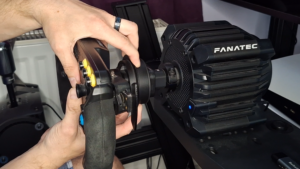
STEP 1: REMOVE WHEEL
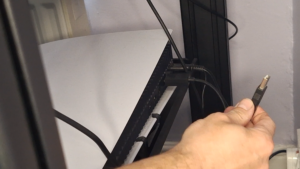
STEP 2: REMOVE PS5 USB
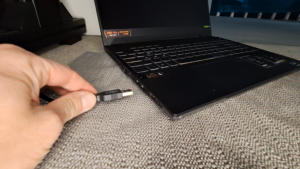
STEP 3: PLUG THE USB INTO THE LAPTOP
Step 1: Connect Your Wheel Base to Your PC
- Turn off your wheel base before disconnecting it from your console.
- Unplug the USB cable from your PlayStation and connect it directly to your PC or laptop.
- Once connected, power the wheel base back on.
- This provides the connection required for the Fanatec Firmware Manager to communicate with your hardware.
Step 2: Enter PC Mode
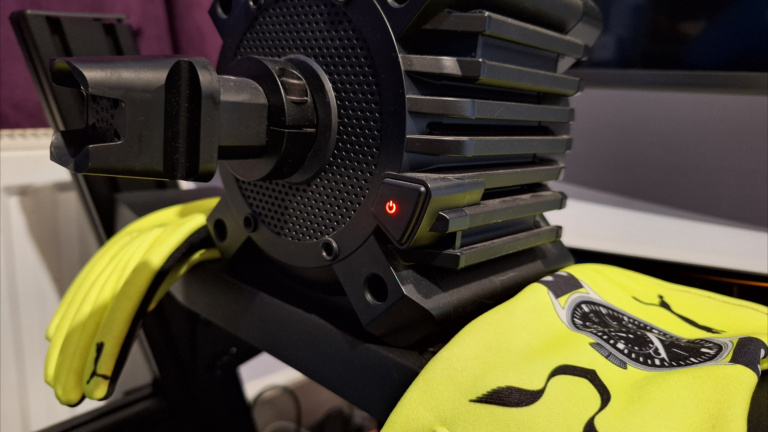
- After powering on the wheel base, switch it into PC mode.
- On the GT DD Pro and CSL DD, PC mode is indicated by a red light on the power button.
- If your wheel base isn’t detected immediately, cycle through the available modes until the red PC mode indicator returns.
Step 3: Open the Fanatec Firmware Manager
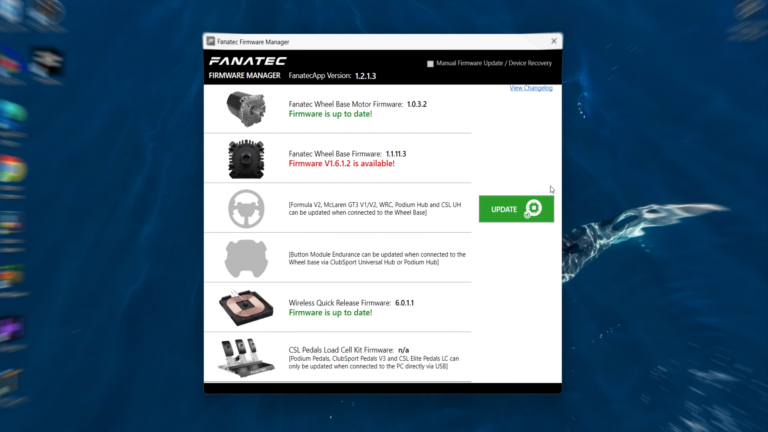
- Launch the Fanatec software and navigate to the Firmware section.
- The software should automatically detect your connected wheelbase. If it doesn’t, double-check that PC mode is active and that the USB cable is securely connected.
- Once detected, you’ll be presented with the Firmware Manager dashboard.
Step 4: Start the Fanatec Firmware Update
- When an update is available, you’ll see a prominent update button.
- Click the update button and follow the on-screen instructions carefully.
- During the Fanatec firmware update process, you’ll be presented with several prompts. Read each one carefully and allow any countdown timers to complete before proceeding.
- Most users should keep the option to preserve presets enabled. This helps retain your existing wheel base settings after the update.
⚠️ Step 5: Do Not Disconnect Anything ⚠️
This is the most important part of the entire Fanatec firmware update process. While the update is running, never disconnect the USB cable, switch off the wheel base, or power down your PC.
Interrupting a Fanatec firmware update is one of the most common causes of a bricked wheel base. During the update, the power button may flash. This is completely normal and indicates that the firmware is being installed.
Step 6: Reconnect Your Steering Wheels
- Once the Fanatec firmware update has completed successfully, the software will prompt you to reconnect your steering wheels.
- Attach each wheel individually and follow the on-screen instructions.
- This allows the software to verify that all connected hardware is functioning correctly.
Step 7: Reconnect Your Sim Racing Setup
- When all updates are complete, close the Fanatec software and power off the wheel base.
- Disconnect the USB cable from your PC and reconnect it to your console.
- At this stage, your Fanatec firmware update is complete, and your setup is ready to use again.
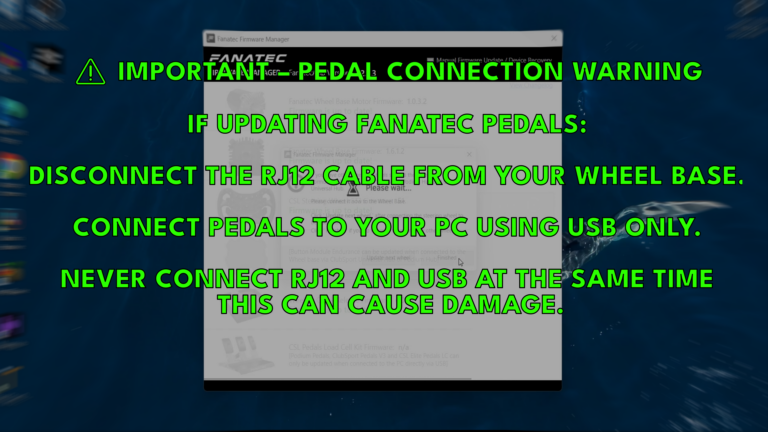
⚠️ Important Fanatec Pedal Warning ⚠️
If you’re updating Fanatec pedals, there is an additional safety step you must follow.
- Disconnect the RJ12 cable from your wheel base before connecting the pedals to your PC.
- When updating pedals, use USB only.
- Never connect both RJ12 and USB at the same time, as this can potentially damage your hardware.
Common Fanatec Firmware Update Problems and Fixes
Below are some of the most common issues users may experience during a Fanatec firmware update, along with recommended fixes.
Wheel Base Not Detected
If your wheelbase is not being detected by the Fanatec software, first ensure that PC mode is active and the red indicator light is visible.
You should also:
- Try a different USB port
- Avoid using USB hubs or extensions
- Connect directly to a motherboard USB port if possible
Firmware Update Appears Frozen
If the Fanatec firmware update appears to be stuck or unresponsive, it is important to remain patient. Some firmware updates can take several minutes depending on the components being updated, particularly during wheel base or quick release stages.
Only consider the update frozen if there has been no progress for an extended period of time. Avoid disconnecting any devices unless the software has completely stopped responding.
Firmware Update Stuck at 53% (QR Stage Issue)
A known issue affecting some users during a Fanatec firmware update is the process becoming stuck at around 53%, typically during the Quick Release (QR) firmware stage.
This issue can cause the update to freeze completely and prevent the installation from completing. Fanatec are aware of this behaviour and is working on a permanent fix. In the meantime, support has provided a temporary recovery method.
If your Fanatec firmware update is stuck at 53%, follow the official recovery steps below:
Recovery Steps for Fanatec Firmware Update Stuck at 53%
⚠️ Only follow these steps if your firmware update is frozen or unresponsive at the 53% stage. ⚠️
- Turn OFF the wheel base and remove the steering wheel
- Uninstall the current Fanatec software/driver package
- Open Windows Device Manager
- Change view to “Devices by container”
- Enable “Show hidden devices”
- Uninstall all Fanatec-related devices listed
- Restart your PC
- Install Fanatec Driver 474 (legacy version) with the wheel base still OFF
- Restart your PC again after installation
- Connect the wheel base directly to a motherboard USB port (avoid hubs or extensions)
- Hold the wheel base power button for approximately 8 seconds
- The firmware updater should now launch automatically
- Click “Flash Firmware” and allow the update to complete fully
After the Firmware Update Completes Successfully
Once the recovery process is complete:
- Turn OFF the wheel base
- Reattach the steering wheel
- Uninstall Driver 474 (legacy version)
- Install the latest official Fanatec software/app
- Restart your PC
- Launch the software and test in-game functionality
Steering Wheel Not Recognised
If your steering wheel is not recognised after completing a Fanatec firmware update, try the following:
- Reconnect the steering wheel
- Restart the Fanatec software
- Ensure the quick-release is fully seated and locked in place
Benefits of Keeping Fanatec Firmware Updated
Regularly performing a Fanatec firmware update helps ensure your hardware remains compatible with the latest games and software releases.
Benefits can include:
- Improved force feedback performance
- Better hardware compatibility
- Enhanced stability
- Bug fixes
- Improved wheel and pedal communication
- Better overall reliability
For serious sim racers, staying up to date is one of the easiest ways to maintain peak performance.
Related Guides
Once your firmware is updated, you can optimise your setup further:
FAQ
Yes, but only if the update process is interrupted. Following this guide will help you avoid that risk.
Disconnecting during an update can cause your wheel base to become unresponsive.
Yes, updates improve performance, compatibility, and stability.
Not usually. If you choose to preserve presets during the update process, your settings should remain intact.
In some cases, yes. Fanatec firmware updates may include force feedback improvements and hardware optimisations.
Most updates take only a few minutes, although larger updates may take longer.
This usually happens during the Quick Release (QR) firmware stage. The update can freeze due to driver conflicts, USB communication issues, or outdated Fanatec software versions.
Fanatec support currently recommends a full driver reset and reinstall using Driver 474 (legacy version), followed by reconnecting the wheel base directly to a motherboard USB port. The full step-by-step workaround is listed above.
No. Fanatec have acknowledged this as a known issue and are working on a permanent fix. The current method is a temporary workaround.
Final Thoughts
Completing a Fanatec firmware update may seem intimidating at first, but it’s actually a straightforward process when approached correctly.
By following the steps in this guide, maintaining stable power, and avoiding interruptions, you can safely update your GT DD Pro, CSL DD, or other Fanatec wheel base with confidence.
If you’re looking to get even more from your setup, be sure to check out my Fanatec Wheel Base Settings Guide and other Fanatec reviews and tutorials. Together, these guides will help you get the very best performance from your sim racing equipment.